7 Reasons ChatGPT Can't Read a URL, and How to Fix Each One
You paste the URL of an article you meant to read, ask for a summary, and get back some version of "I wasn't able to access that page." Or the summary does arrive, you open the article yourself, and it has nothing to do with what you just read. Neither of these is unusual. Here is the conclusion up front. "I can't read this" is a symptom, not a cause. Does the page require a login? Is the body assembled by JavaScript after the fact? Is the site turning the request away on purpose? There are several possible causes, and each one takes a different fix. Applying the same remedy to every "can't read" will miss most of the time. There is one more thing worth putting in bold. The case where it tells you it couldn't read the page is the safe one. The dangerous case is the one where it quietly hands you a summary it made up. You can catch the first. You cannot catch the second. This article gives you a way to sort the causes and a fix for each symptom. And because we build the part of a read-later app that goes out and fetches a title, a thumbnail and a description from a URL, I'll also describe, with numbers from our own logs, how hard it actually is for a machine to read a web page.
The dangerous case is a summary of a page it never opened
Before the sorting, this one first, because this is where the real damage is.
A URL string almost always carries meaningful words: the domain, the category, a slug that spells out the article's title in plain English. Without reading a single character of the page itself, you can assemble a plausible-sounding paragraph out of those alone. As far back as 2023, people pointed out that you could fake an article summary using nothing but the words in the URL.
The problem is that this can still happen today. There are reported cases where a paywall blocked access to the body of a paid article and a confident summary came back anyway, with no mention of the fact. In another documented case, an article that had never actually been retrieved was described as having been read, and the analysis that followed was about a completely different topic than the original post. In disputes involving news organizations, URLs and quotations that were presented as real were later acknowledged to be hallucinated.
In other words, getting a summary back is not evidence that the page was read. There are three ways to check.
Are there proper nouns and numbers? If the body was actually read, specifics leak into the summary: people's names, product names, version numbers, prices, dates. When you instead get nothing but abstractions that would fit any article at all — "it explains the importance of X," "it lays out the pros and cons of Y" — be suspicious.
Does it go beyond what the URL and title alone would tell you? If the URL contains `react-performance`, anyone can guess that it's about React performance. What you're looking for is information above that line: something that could only come from the body, like "the author considered this approach and decided against it."
Ask for quotes. This is the most reliable check by far. Follow up with something like: "Quote three passages from the article verbatim and tell me which paragraph each one came from." If the page was read, quotes come back. If it wasn't, you'll either be told they can't be produced, or you'll get a sentence that doesn't exist. Paste that sentence into your browser's find-in-page and you have your answer in two seconds.
If a summary is going to inform a real decision at work, that one extra step is worth taking.
Sorting the seven causes
Now for the causes. Roughly speaking, there are seven reasons a page can't be read. Guess from the symptom, then confirm with the check.
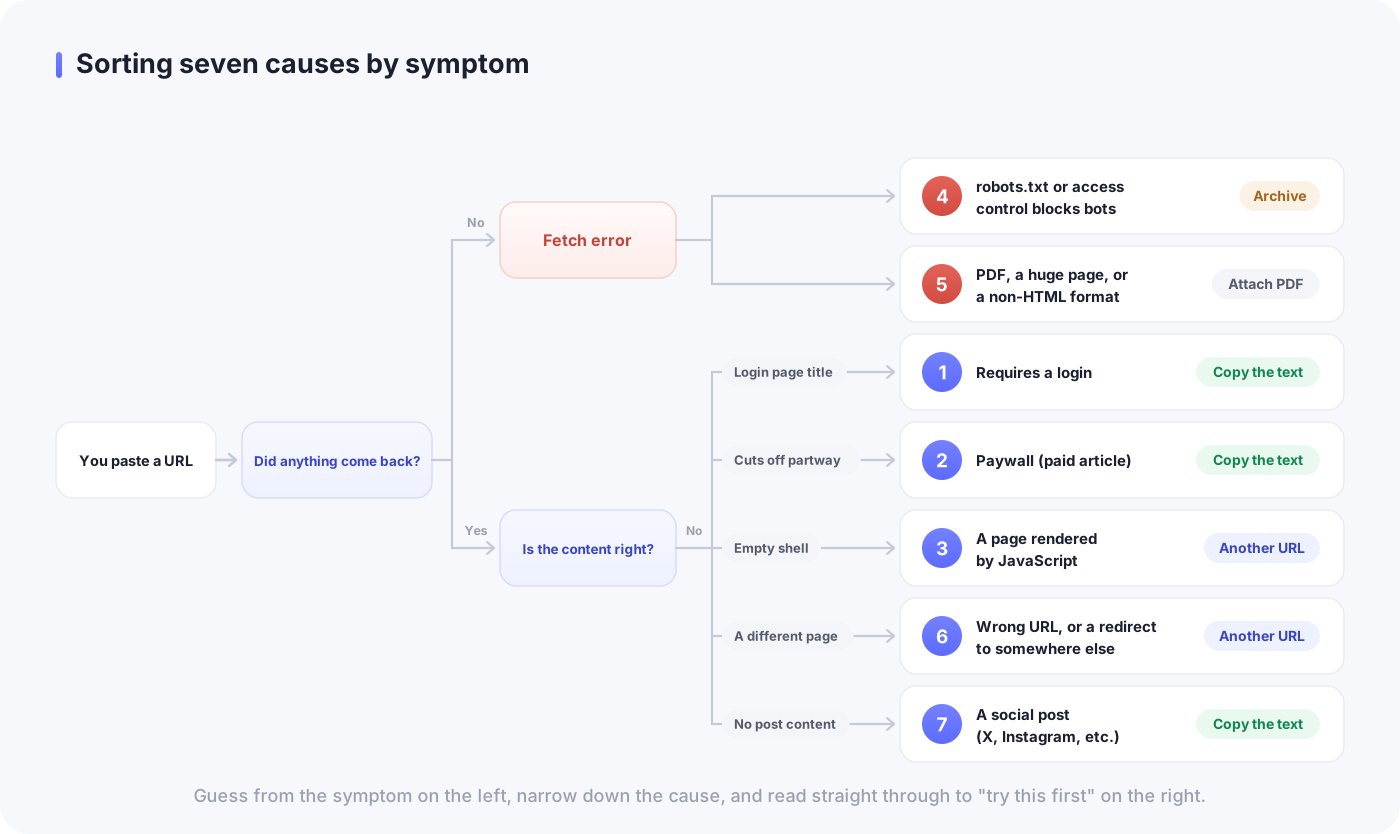
1. You get back something that looks like the title of a login page
- Likely cause: the page requires a login
- How to check: open it in a private window
- Try first: copy the text and paste it in
2. The opening is right, but it goes vague partway through
- Likely cause: a paywall (paid article)
- How to check: log out and see how far you can read
- Try first: hand over only the part you can read, or copy the body if you're a subscriber
3. It picks up the title but the body is empty
- Likely cause: a page rendered by JavaScript
- How to check: view the page source and search it for a sentence from the body
- Try first: look for a print view, an RSS feed, or the original article
4. A response saying the fetch itself was refused
- Likely cause: robots.txt or access control is blocking bots
- How to check: see whether other pages on the same site behave the same way
- Try first: use an archive, or copy the text
5. It takes a long time and then fails
- Likely cause: a PDF, a huge page, or a format that isn't HTML
- How to check: look at the file format and size
- Try first: download the file and attach it
6. It talks about a completely different page
- Likely cause: the URL is wrong, or the redirect lands somewhere else
- How to check: open it in a browser and look at the final URL in the address bar
- Try first: hand over the URL you end up on after redirects
7. The content of the post never appears
- Likely cause: a social post (X, Instagram, and the like)
- How to check: try opening it while logged out
- Try first: copy the post text, or attach a screenshot
A note on number 3. To view the page source, press `Ctrl+U` on Windows or `Command+Option+U` on a Mac. In the source that opens, search for a distinctive sentence from the article body. If it isn't there, that page's body is assembled after JavaScript runs. AI crawlers generally do not execute JavaScript and see only the HTML the server returned first, so on pages like this the content might as well not exist.
Number 4 is the site's own decision. As of September 2026, OpenAI publishes separate crawler names for different purposes, and site owners can specify how each one is treated in `robots.txt`. Fetches performed because a user asked for a specific page are said to be handled separately, but either way, when a site has access control in place there is very little a reader can do about it.
The view from the build side: machines have a harder time than you'd think
We build a read-later URL manager, and we run our own code that fetches the title, thumbnail and description when you paste a URL. We aren't reading the whole body, so the purpose is different, but the first hurdle is exactly the same. Send one request, read the HTML that comes back. Whether you fail right there decides everything downstream.
Once it was running in production, the failures didn't look the way I expected. It isn't that *part* of the data goes missing. Sometimes nothing comes back at all.
The response headers were too large, and the whole fetch died with them
On one site, the title, the thumbnail and the favicon all came back empty. Open it in a browser and it renders perfectly. Fetch it with a command line tool and the content is right there. And yet, from our server specifically, nothing.
The cause wasn't the body — it was a size limit on the response headers. Node.js's HTTP client has a default cap of 16KB on the combined size of the headers it will accept. When a site sends a huge `set-cookie` and pushes the headers past that, the request itself errors out. Not one byte of the body has been read.
The nasty part is that this limit differs from tool to tool. The command you try by hand succeeds, so you're left staring at an invisible cause: the site is clearly returning the page, but only our app can't get it. We fixed it by raising the cap to 512KB.
The title fell outside our body read limit
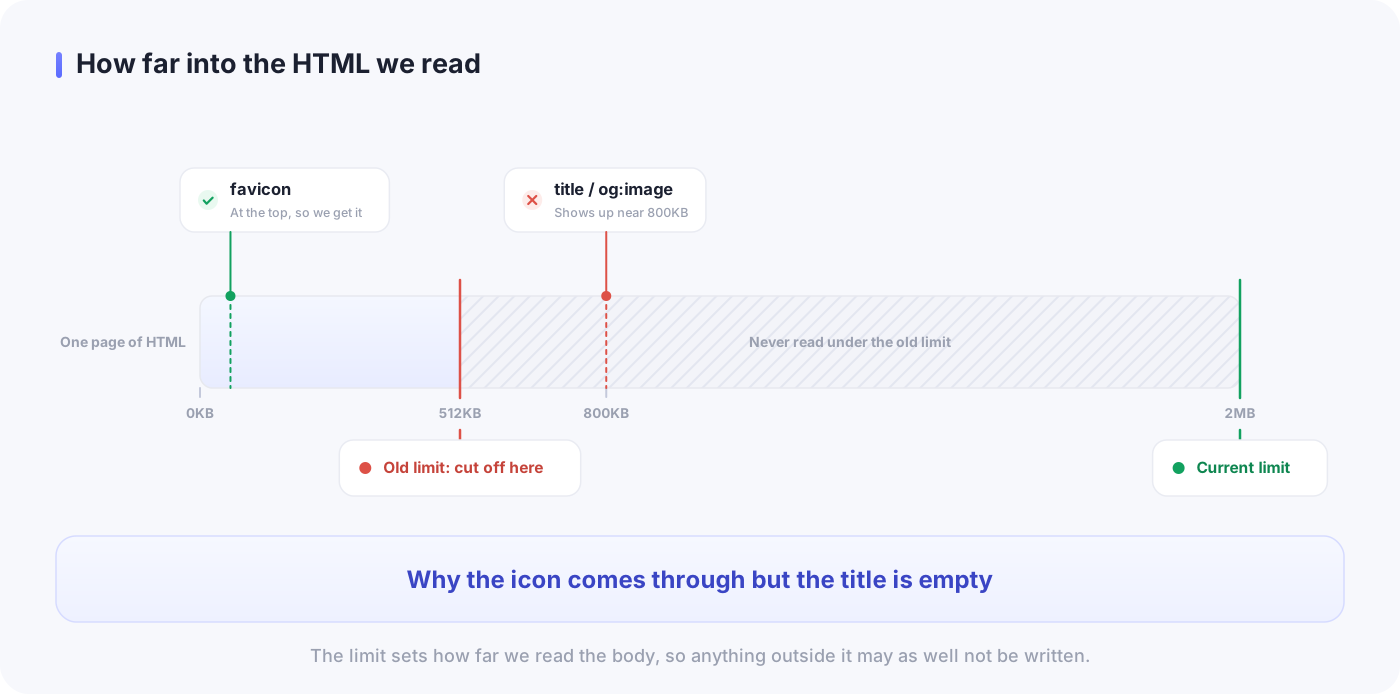
The other limit is how far into the body we read. Everything we need lives inside `<head>`, so the design was to stop reading the moment we hit `</head>`. On a normal page that finishes in a few kilobytes.
But some pages carry an enormous block of inline JavaScript inside `<head>`. On those, the `<title>` and the thumbnail declaration don't show up until somewhere around 800KB — outside the 512KB cap we had at the time. The result: the favicon came through, because it sits near the top of `<head>`, while the title and thumbnail came back empty. The symptom looks like nonsense until you see it, and then it's just a size limit. We raised this one to 2MB.
You need a few tricks not to be taken for a bot
Announce yourself honestly and some sites won't return metadata at all. So we send a User-Agent close to a real browser. We attach the cookie that skips the consent page shown in the EU. We state the language we want, too, because without it a Japanese site will sometimes hand back the English title and description.
The short version: just firing off a request does not get you the same page a human sees in a browser. Of everything in this job, that's the lesson that keeps landing.
Social media needs a dedicated path, or you get nothing
The numbers make the gap obvious. Across a sample of 236 saves at one point in time, the thumbnail success rate was 100% for video, 87.6% for articles, and 67.7% for everything else. For social media it was 18.2%. Broken down by domain, X and Instagram produced not a single one. About 60% of all saves missing a thumbnail were social links.
Login walls and bot blocking are the reason. For X we eventually built a dedicated retrieval path, and only then did post text and images start coming through. There are areas where the generic approach — fetch the HTML, read the metadata — simply cannot reach.
When the fetch fails, the save still has to succeed
One design note to close this section. Given how often fetching fails, when metadata can't be retrieved we fill in the domain alone and let the save itself succeed. Whether the content could be read and whether you got to keep the URL are two different questions, and we think they should stay separate. I'll come back to this in the last section.
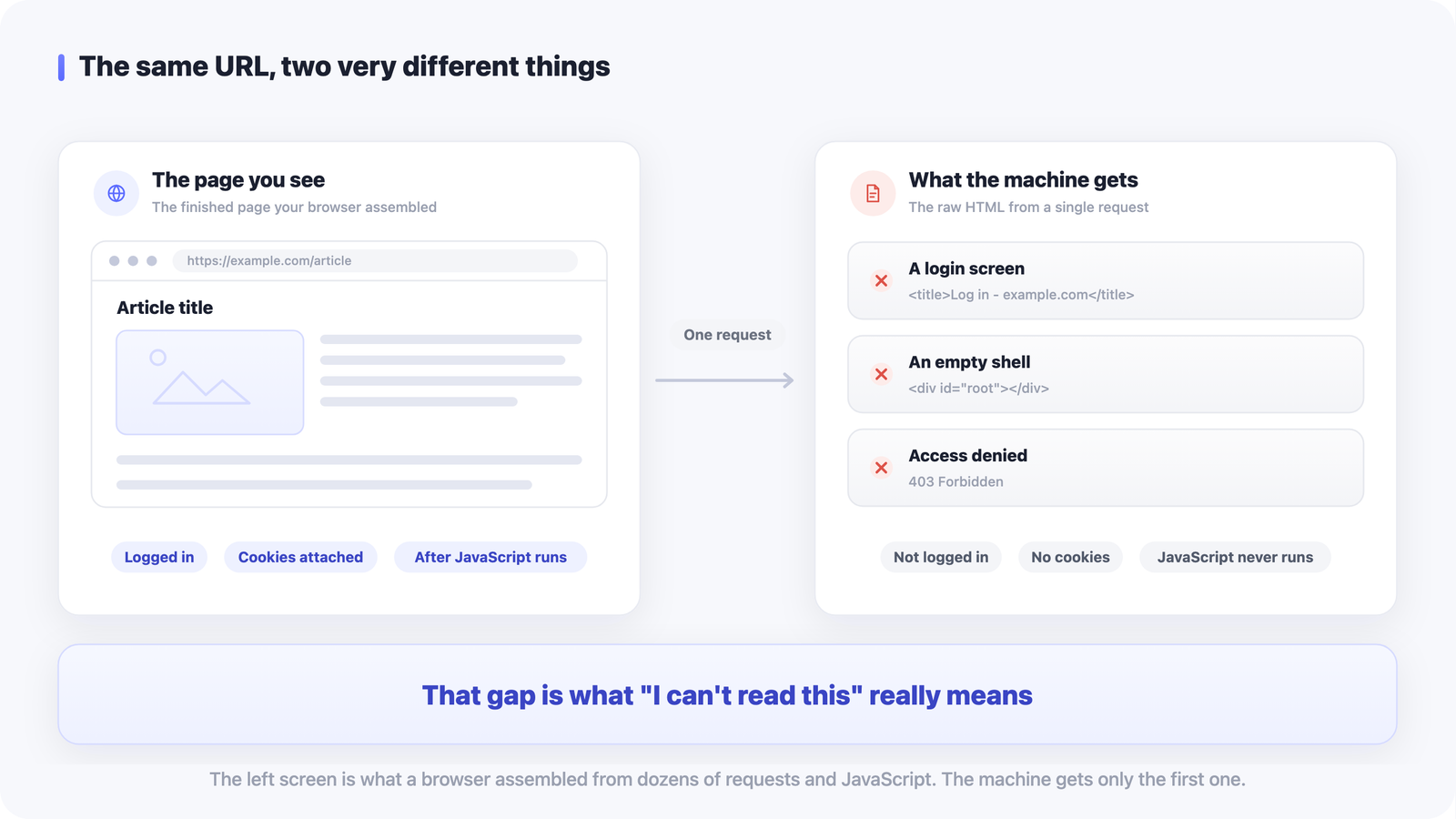
We cut the request off at an 8-second timeout, and if what comes back isn't HTML we give up right there. It runs on a pile of judgment calls like that. "Can't read" isn't the AI being lazy; it's the difficulty of having a machine read a web page at all. A human browser fires dozens of requests, executes JavaScript, carries cookies, and in many cases is already logged in. What a machine sees is the HTML returned by one request. That gap is what "I can't read this" really means.
Fixes by symptom
Once you can see the cause, the fix narrows down fast. Here they are, most reliable first.
Copy the text and paste it in. The surest and fastest method there is. It works whichever of causes 1 through 4 you're facing. Open the page, select the body, paste it in, and ask for a summary of that. Split long articles into a few chunks. When in doubt, pick this one.
Try a different URL. The same content is often served at a second address. A "print view" link at the end of the article, a full-text RSS feed, or — if you're reading through an aggregator — the URL of the original article. These carry less decoration and usually have the body sitting in the raw HTML, so they work well when cause 3, JavaScript rendering, is the problem.
Use an archive. If a service that preserves old copies of pages happens to have that URL, you can hand over the archived version instead. It's a useful detour when cause 4, bot blocking, is what's in your way. Bear in mind that you get the content as of the moment it was saved, so on frequently updated pages you may end up with stale information.
Attach the PDF directly. For cause 5, downloading the file and attaching it beats handing over a URL. As of September 2026, file attachments are available on the free tier, but there is a cap on how many you can send per day. Watch out for scanned PDFs that are only images: they carry no text layer, so this can fail.
Clean up the URL. This is cause 6. Expand shortened links, drop the tracking parameters that start with `utm_`, and hand over the final URL you confirmed in your browser. Sometimes that alone is enough.
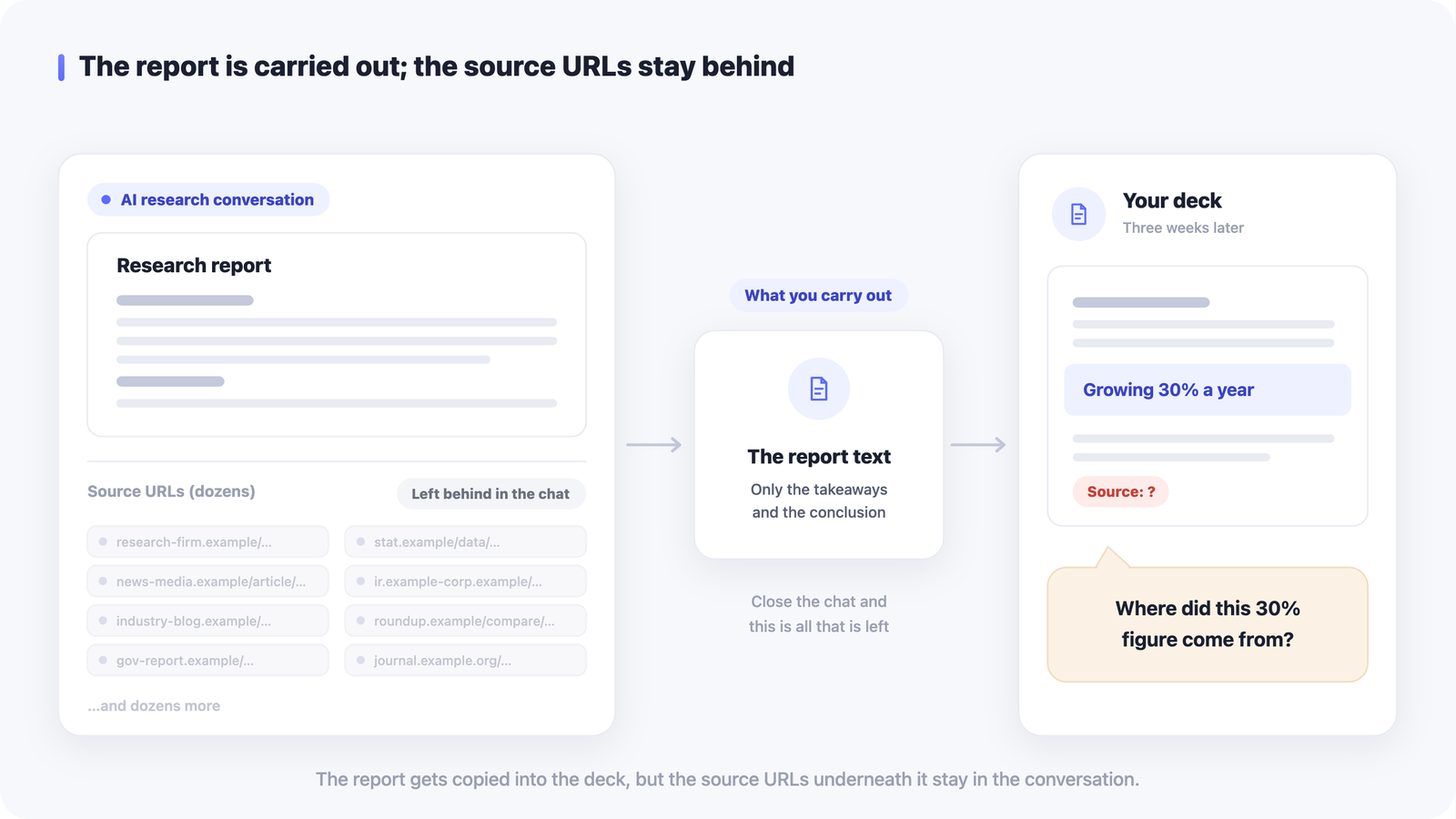
Whichever fix you pick, the links pile up while you work: the article you couldn't get summarized, the archive copy you meant to come back to, the PDF you downloaded and never opened. Saving one is easy, and that's exactly why saving tends to become the finish line. Three steps to turn saved AI information into something useful covers what to add at the moment you save so the pile stays usable.
Read or not, keep the original URL
One last point, and it's the most practical one.
Whether or not the summary went through, always keep the original URL. Two reasons.
The first is that a URL you couldn't get read has nowhere to go but "open it myself later." Pages behind a login, paid articles, social posts — sit down and open them yourself and you can read every one. What you need at that moment is the destination. Scrolling back through chat history to find it is a more annoying job than it sounds: conversations get auto-named after their opening line, several topics end up in one thread, and the list is ordered by nothing but time. Why You Can't Find Anything in Your ChatGPT History goes into why that search fails and why the things worth keeping belong outside the conversation.
The second is that a summary you *did* get back is exactly when you need the source. As we saw in the first half, nothing guarantees that the summary you received is grounded in the body of the page. If it's going to inform a decision, you need to stay in a position where you can go check the original afterward. This isn't about whether you trust the summary; it's about keeping it verifiable. The same goes for source URLs an AI hands back to you: A Practical Workflow for Keeping and Verifying Deep Research Sources lays out how to keep those and check them without turning it into a second job.
There's one trick to how you keep it. Alongside the URL, write one line about why you kept it. "Summary looked off, check the original." "Needs a login, open on the work laptop." That one line is the handle you'll grab when you search later. Titles alone rarely match the words you actually search with, and a reason written in your own words does.
The thing to avoid here is mixing purposes. A bookmark for getting back somewhere and a holding place for articles you haven't read yet are different by nature. A URL you couldn't get read belongs to the second kind. Dump both into the same place and you'll be able to find neither.
The place itself doesn't matter much. A notes app works. Your browser's reading list works. If you're looking for somewhere to put read-later URLs, a saving tool like LaterList is one option. Paste a URL and it fetches the title, thumbnail and description automatically, and you can attach a note on the spot. Search covers not just titles but notes and descriptions too, so writing down why you kept something makes it findable later. And as I mentioned above, a failed metadata fetch doesn't block the save, so URLs that couldn't be read can sit there just fine.
Rather than throwing the same question at a URL that won't load, copy the text and hand that over, and keep the source as a URL. Make those two things a habit and most of these situations take care of themselves.
FAQ
Q. ChatGPT gave me a summary, but it doesn't match the article. Why?
Because it can write up something inferred from the URL string and the title even when it never retrieved the body. There are multiple reported cases of a summary coming back with no mention of the fact that the page couldn't be read. To tell the difference, check whether the summary contains specifics that could only come from the body, like proper nouns and numbers. The reliable test is to follow up with "quote three passages from the article verbatim" and then run one of those sentences through your browser's find-in-page. If it isn't there, the page wasn't read.
Q. When a URL can't be read, what's the most reliable approach?
Open the page, copy the body, paste it in, and ask for a summary of that. Whether the page needs a login, sits behind a paywall, or is rendered by JavaScript, if your own browser can display it then the text is already in your hands. It doesn't depend on the fetch succeeding, so you can use it before you've even sorted out the cause. Split long articles into a few chunks. For a PDF, downloading the file and attaching it is more reliable than handing over the URL.
Q. Will a paid plan let it read URLs?
It depends on the cause. As of September 2026, web search is said to be available on the free tier, so it isn't the simple relationship of "upgrade and it will read anything." Most of the reasons a page can't be read live on the site's side. A login requirement, a paywall, JavaScript rendering, and access control are the same wall from every plan. Before you consider changing plans, work out which cause you're actually dealing with.