Organize your reading list outside the browser
Chrome’s reading list and bookmarks are built to live inside Chrome. Import your exported bookmarks HTML and everything moves into LaterList with its folders intact—so the same list opens on the iPhone app and the web.


How to move from your browser bookmarks
Besides Chrome, bookmark exports (HTML files) from Edge, Firefox, and Safari work too.
1. Export your bookmarks as an HTML file
- Export from Chrome
Open the Bookmark manager, choose “Export bookmarks” from the menu (⋮) at the top right, and save the HTML file.
- Export from other browsers
Edge, Firefox, and Safari can also save your bookmarks (favorites) as an HTML file with their export feature.
- Include reading list items
If your reading list items aren’t in the exported file, add those pages to your bookmarks before exporting, or make a text file (.txt) with one URL per line and import that.
2. Import it into LaterList
- Open the import screen
Sign up with the “Import your bookmarks” button on this page and the import screen opens right after. If you already have an account, log in and you land on it directly. Later, you can also find it under Settings → Data → Import.
- Choose the file
Drop the exported HTML file onto the screen or use “Choose a file”. The format is detected automatically, and you see how many links were found with a preview of the first 20.
- Check the options
Links you’ve already saved are skipped automatically. If the file contains folders or tags, you can choose whether to bring them in.
- Import
Press “Import N links”. When it finishes, you see how many links were imported and how many were skipped.
- URLs, titles, folders, and date added are imported. Tags are imported too if the HTML contains them.
- Folders can be recreated. Nested folders become one level named “Parent / Child”, and the bookmarks bar itself doesn’t become a folder.
- The Chrome extension is coming soon. Until then, save by pasting a URL on the web or from the iOS share sheet.
- The Free plan holds up to 50 links in total. Anything over the limit isn’t imported, and the import screen tells you how many will fit before you start.
- Thumbnails and descriptions are fetched right away for the first 20 links; the rest are filled in gradually afterwards.
- Importing is done on the web version (in a computer or phone browser). Files up to 5 MB.
What you can do after the move
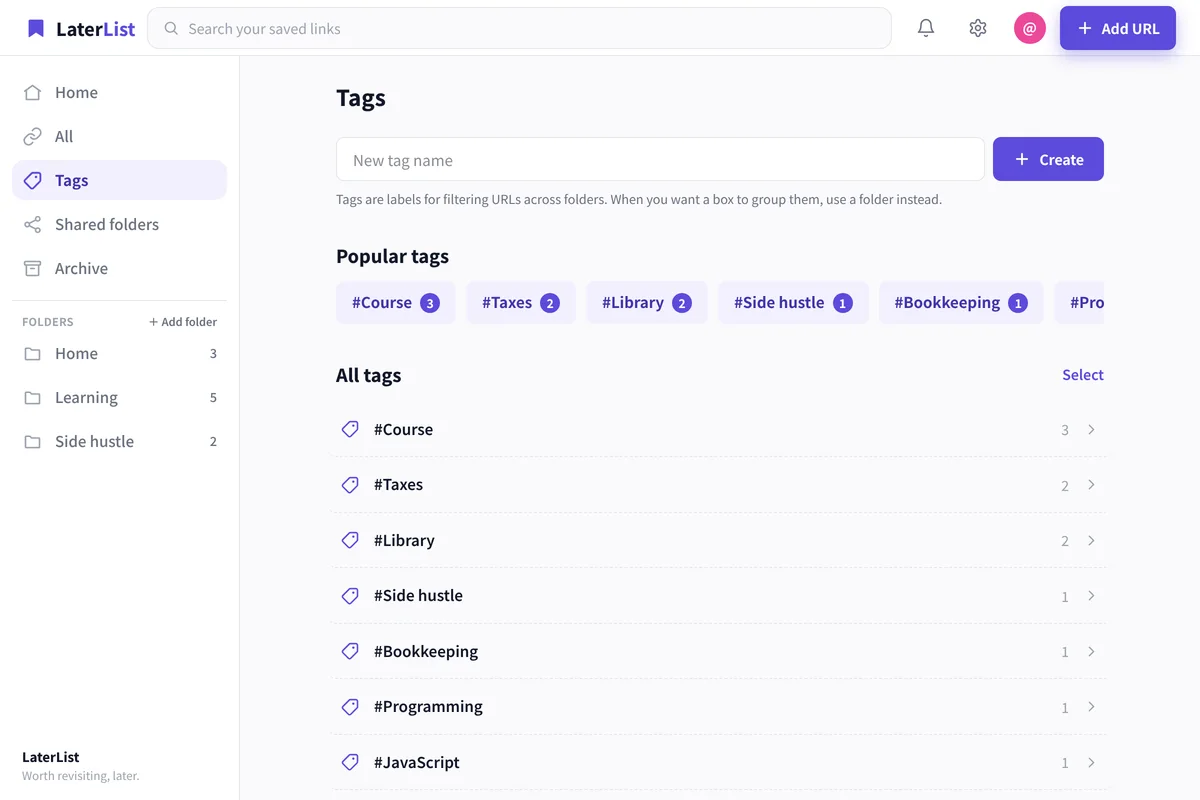
Bring your folders, add tags across them
Browser folders become LaterList folders as they are. Add tags to classify links across folders.
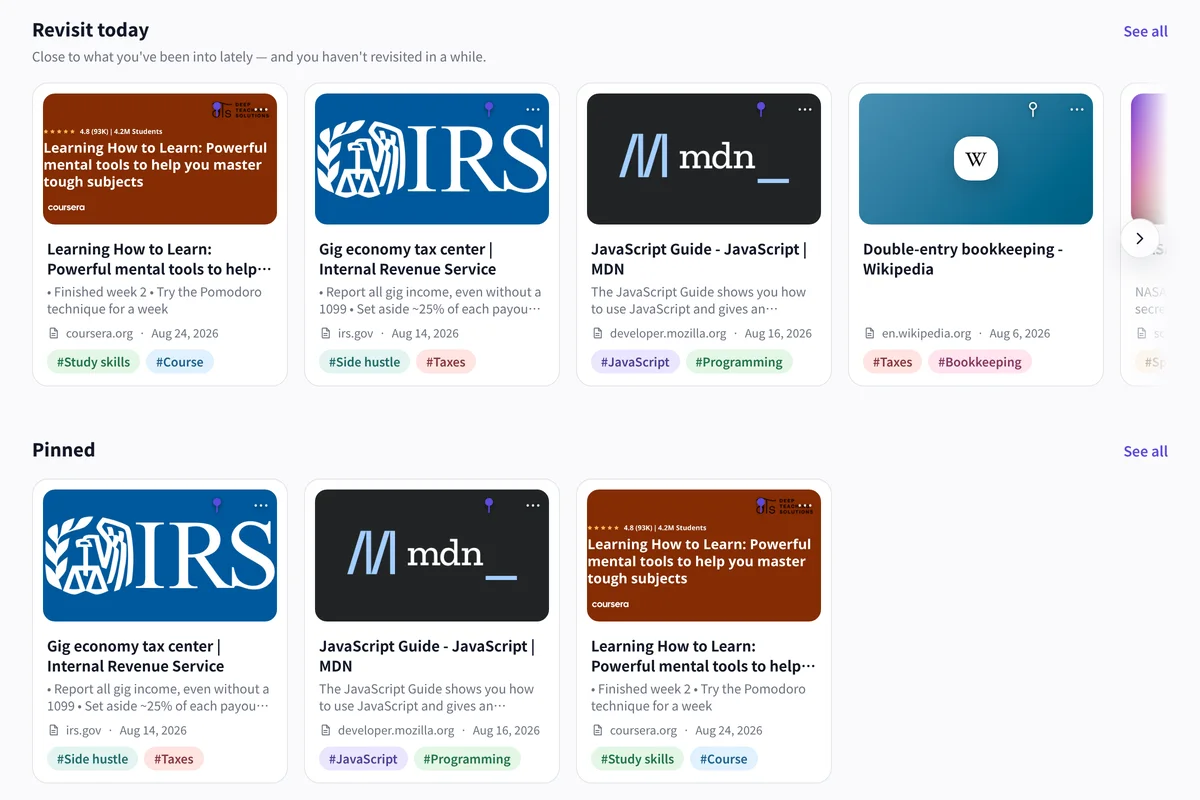
Saved pages come back to Home
Links you haven’t opened in a while resurface on Home, including pages that sat in your reading list.
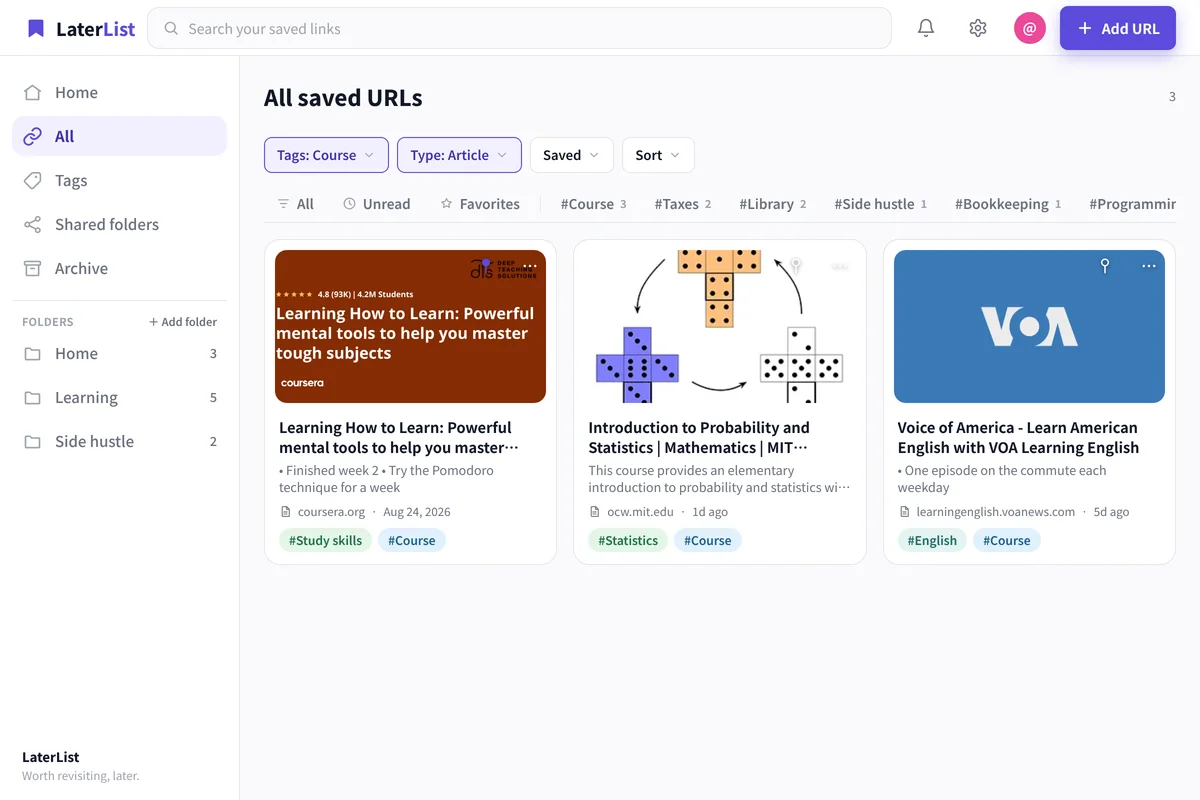
Find it from your iPhone
Search titles, tags, notes, and descriptions at once—from your iPhone, without opening your computer’s browser.
- Same data on the iOS app and the web
- Free plan with no time limit
- Title and thumbnail fetched automatically
FAQ
Can I move my Chrome reading list?
LaterList imports bookmark HTML exports and text files listing URLs. For reading list items, add them to your bookmarks before exporting, or put their URLs in a text file and import that.
Are my folders recreated?
Yes. Browser folders are created as LaterList folders, and nested folders become one level named “Parent / Child”. You can turn this on or off on the import screen.
Can I import bookmarks from Edge, Firefox, or Safari?
Yes. Bookmark HTML files exported from each of these browsers are supported, and the format is detected automatically.
Is there a Chrome extension?
The Chrome extension is coming soon. For now, save by pasting a URL on the web or from the iOS share sheet.
How many links can I import for free?
The Free plan holds up to 50 links in total. If your file has more, the import screen shows how many will fit and how many are over the limit before you import. To bring everything over, choose Lite (1,000 links) or Pro (practically unlimited).
Turn the pages piled up in your browser into a list you can open anywhere.
Sign up and the import screen opens right away. Free for up to 50 links.