Move what you saved in Pocket straight into LaterList
Pocket shut down on July 8, 2025. Pick the CSV from the export you still have, and LaterList brings over each link’s URL, title, tags, and saved date. Then reorganize with folders and tags, and read on iPhone or the web.


How to move from Pocket
All you need is the file you got from Pocket’s export.
1. Get the CSV out of your export
- Find the export ZIP
Pocket’s export came as a ZIP file containing a CSV. Check your Downloads folder or the email Pocket sent you. The service has already shut down, so a new export can’t be made now.
- Unzip it to get the CSV
Open (unzip) the ZIP and you’ll find a file ending in .csv. If its first line lists title, url, time_added, tags, status, it’s the Pocket CSV.
2. Import it into LaterList
- Open the import screen
Sign up with the “Import your Pocket CSV” button on this page and the import screen opens right after. If you already have an account, log in and you land on it directly. Later, you can also find it under Settings → Data → Import.
- Choose the file
Drop the CSV file onto the screen or use “Choose a file”. The format is detected automatically, and you see how many links were found with a preview of the first 20.
- Check the options
Links you’ve already saved are skipped automatically. If the file contains folders or tags, you can choose whether to bring them in.
- Import
Press “Import N links”. When it finishes, you see how many links were imported and how many were skipped.
- URLs, titles, tags, and saved dates (time_added) are imported. Read/archived status (status) is not.
- If you have several CSV files, import them one after another with “Import another file” on the finish screen.
- The Free plan holds up to 50 links in total. Anything over the limit isn’t imported, and the import screen tells you how many will fit before you start.
- Thumbnails and descriptions are fetched right away for the first 20 links; the rest are filled in gradually afterwards.
- Importing is done on the web version (in a computer or phone browser). Files up to 5 MB.
What you can do after the move
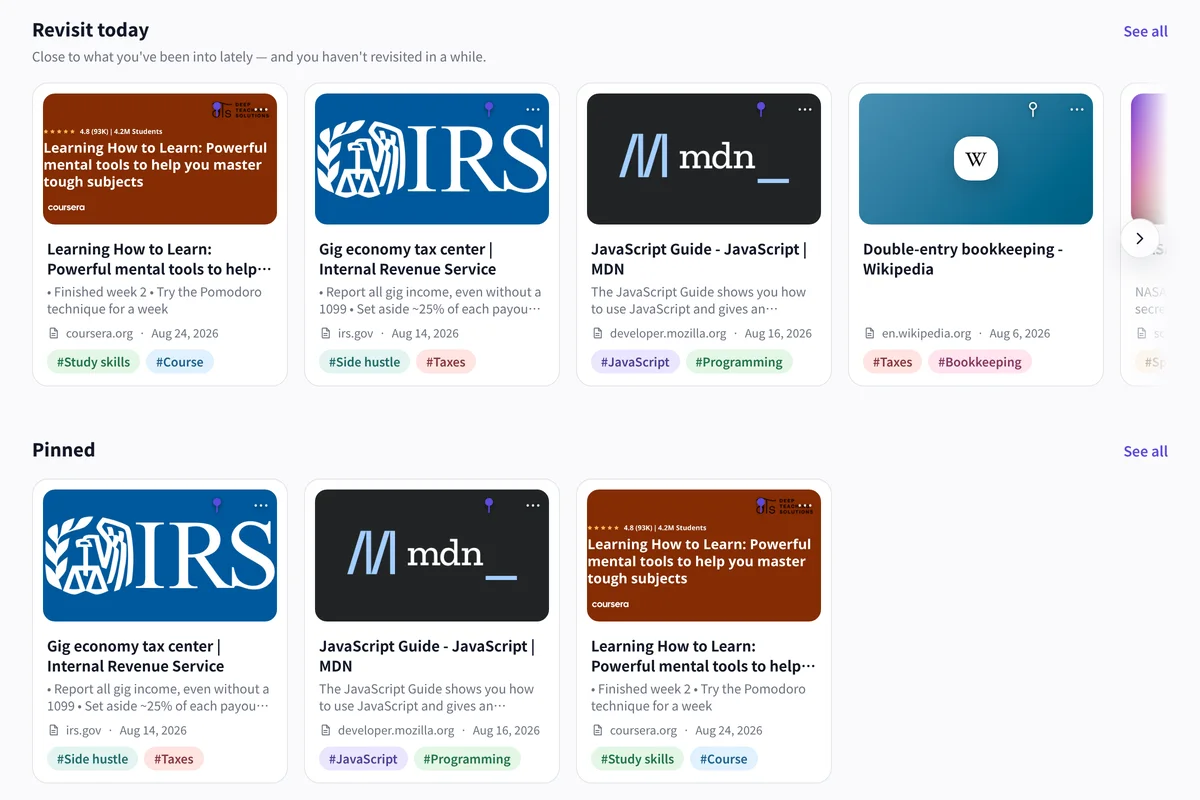
Get back to what you stashed
Links you haven’t opened in a while resurface on Home, so articles that sat untouched in Pocket get another chance.
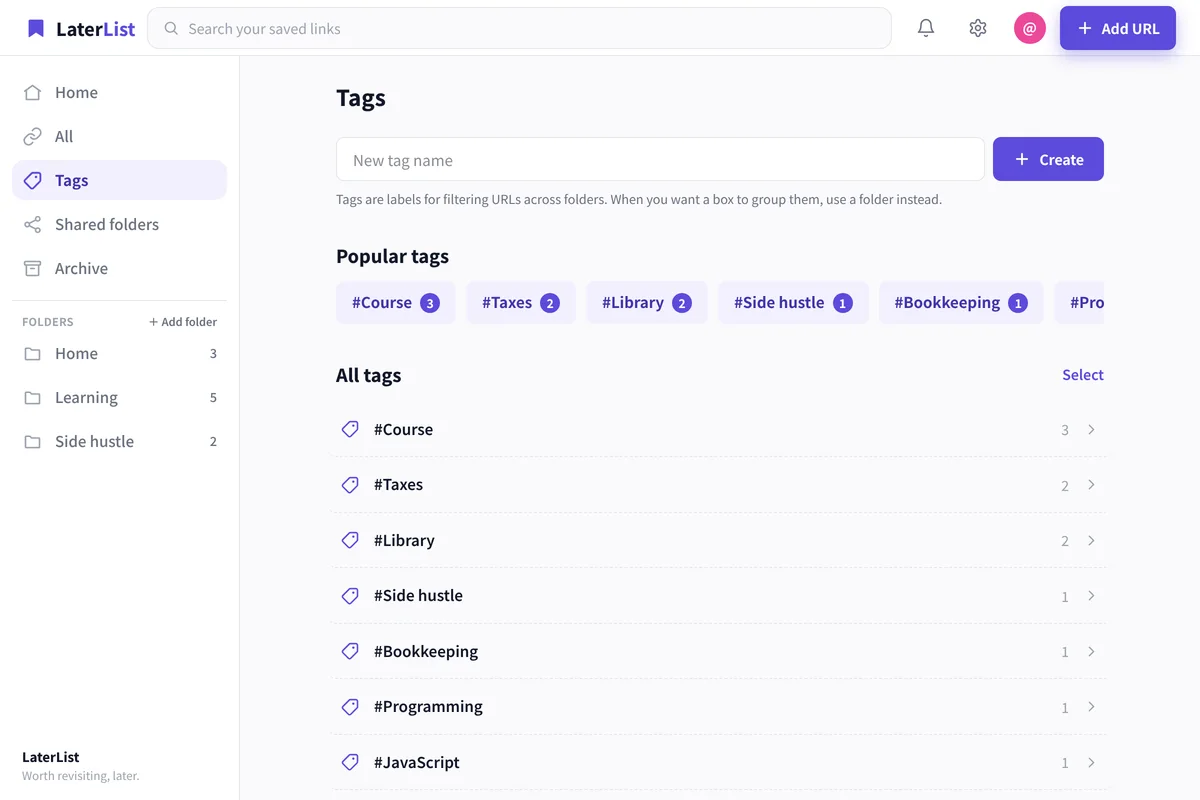
Keep your tags, regroup with folders
Your Pocket tags come along as they are. Regroup links into folders by topic and add notes on why you saved them.
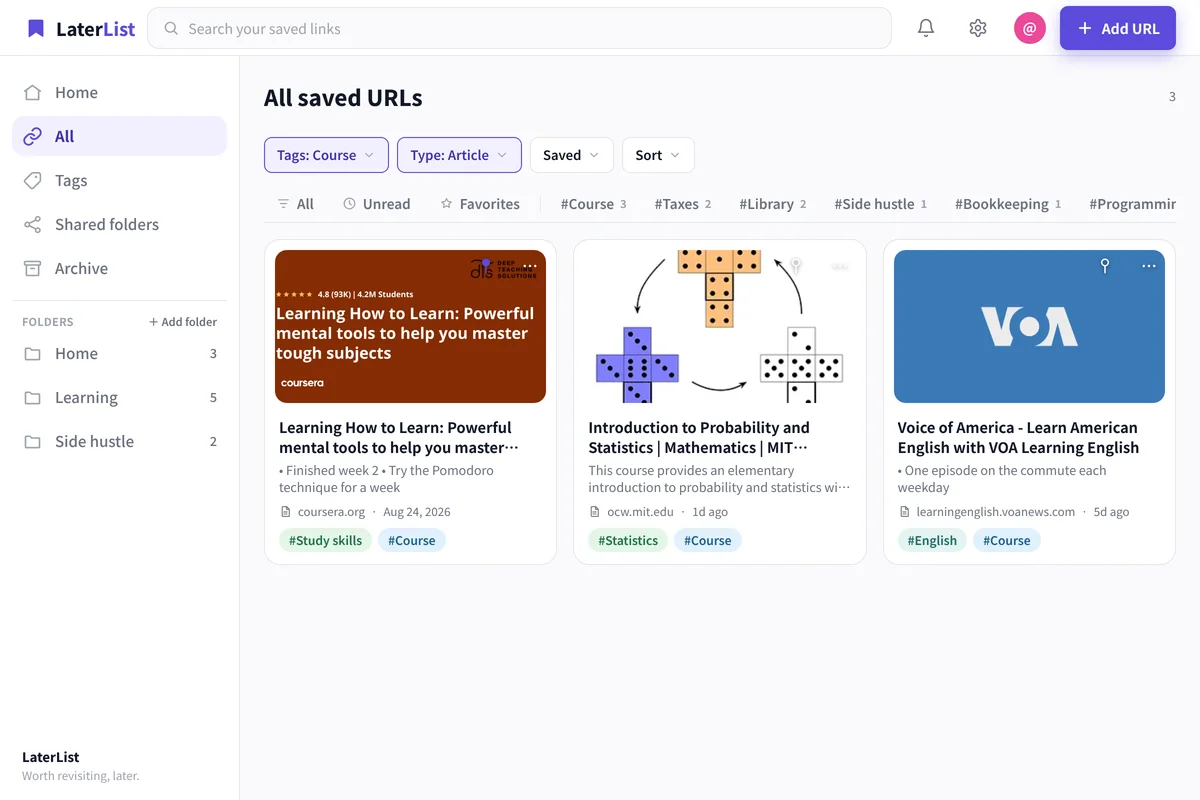
Search across years of saves
Search titles, tags, notes, and descriptions at once—find an article you saved long ago from the words you remember.
- Same data on the iOS app and the web
- Free plan with no time limit
- Title and thumbnail fetched automatically
FAQ
Can I move my Pocket data to LaterList?
Yes. Choose the CSV file from your Pocket export on the import screen. URLs, titles, tags, and saved dates come along, and links you’ve already saved are skipped automatically.
I can’t find my export file.
Pocket shut down on July 8, 2025, so LaterList can’t retrieve Pocket data for you. If you still have a list of URLs, you can import a text file (.txt) with one URL per line.
How many links can I import for free?
The Free plan holds up to 50 links in total. If your file has more, the import screen shows how many will fit and how many are over the limit before you import. To bring everything over, choose Lite (1,000 links) or Pro (practically unlimited).
Can I save and read full articles like in Pocket?
LaterList saves links (URLs) so you can organize and revisit them; it doesn’t store full article text for offline reading. You can open the original page from your saved link anytime.
Can I import from Instapaper too?
Yes. Instapaper CSV exports are supported. Choose the file on the same import screen and the format is detected automatically.
Give the articles you kept in Pocket a place to be read.
Sign up and the import screen opens right away. Free for up to 50 links.