Organize your X bookmarks alongside your other links
Posts you bookmark on X pile up inside X. Import their URLs into LaterList and they sit next to your articles and videos—sorted with folders, tags, and notes, and easy to find again with cross-search.


How to import your X bookmarks
LaterList reads a JSON file that contains post URLs, or a text file listing post URLs. It never connects to your X account.
1. Prepare a file to import
- Use a JSON export
If you use a tool (such as a browser extension) that exports bookmarks as JSON, choose that file as is. Each post needs a URL or a post ID. A plain array of posts works, and so does an array nested under keys like bookmarks, data, or tweets.
- Or make a list of URLs
Without an export tool, copy each post’s link from its share menu and paste one per line into a text file (.txt). For a handful of posts, this is the surest way.
2. Import it into LaterList
- Open the import screen
Sign up with the “Import your X bookmarks” button on this page and the import screen opens right after. If you already have an account, log in and you land on it directly. Later, you can also find it under Settings → Data → Import.
- Choose the file
Drop your JSON or text file onto the screen or use “Choose a file”. The format is detected automatically, and you see how many links were found with a preview of the first 20.
- Check the options
Links you’ve already saved are skipped automatically. If the file contains folders or tags, you can choose whether to bring them in.
- Import
Press “Import N links”. When it finishes, you see how many links were imported and how many were skipped.
- From JSON, LaterList imports each post’s URL, its text (as the title, in the form “@author: text”), hashtags (as tags), and the date if the file has one (as the saved date).
- Your bookmarks on X aren’t deleted or changed. LaterList only reads the file you choose.
- The Free plan holds up to 50 links in total. Anything over the limit isn’t imported, and the import screen tells you how many will fit before you start.
- Thumbnails and descriptions are fetched right away for the first 20 links; the rest are filled in gradually afterwards.
- Importing is done on the web version (in a computer or phone browser). Files up to 5 MB.
What you can do after importing
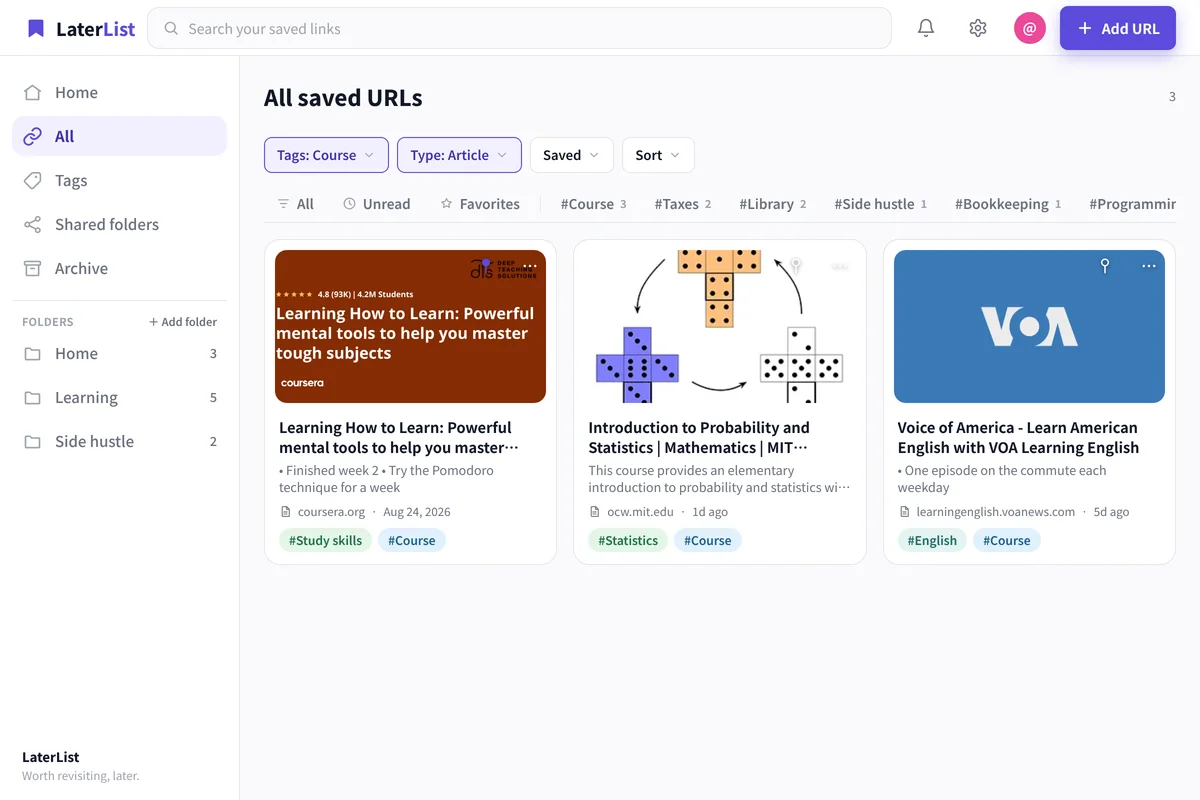
Sort posts into topic folders
Put imported posts in the same folders as your articles and videos. Add tags and notes to remember what each one was for.
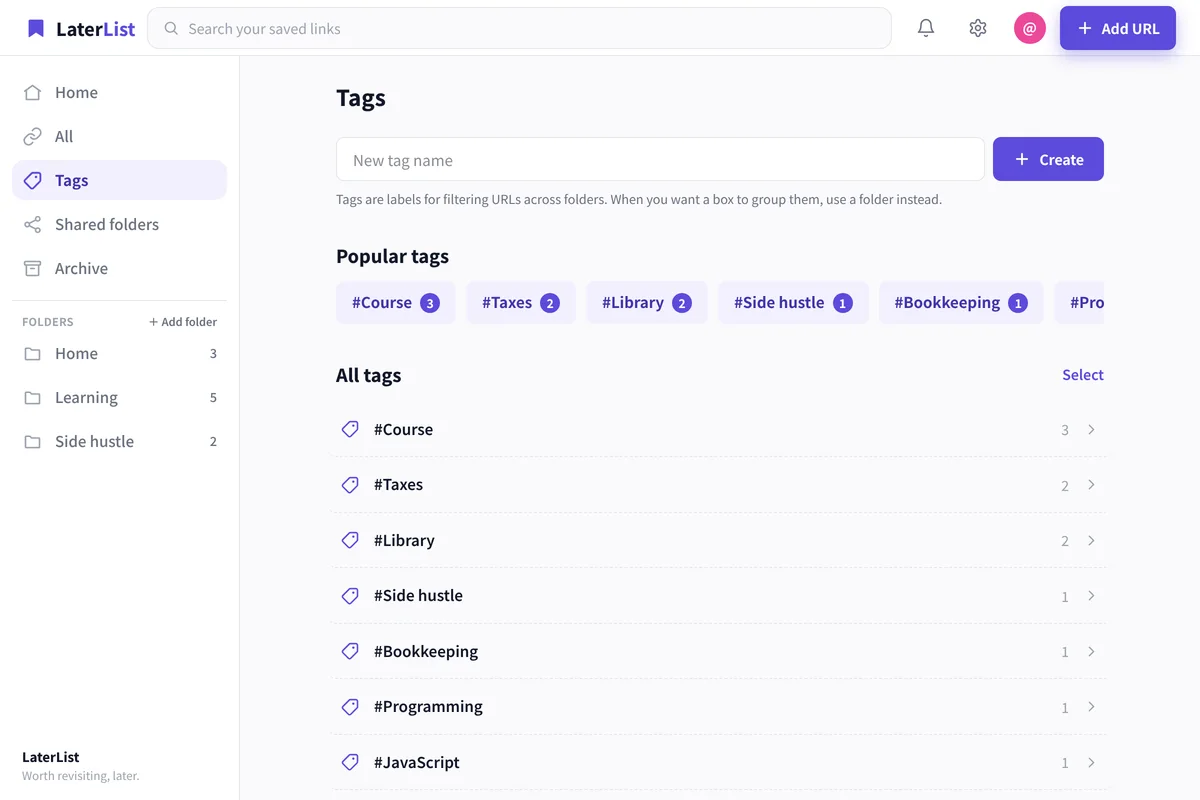
Search by the words in the post
A post’s text becomes its title, so you can search for the words you remember—along with tags, notes, and descriptions.
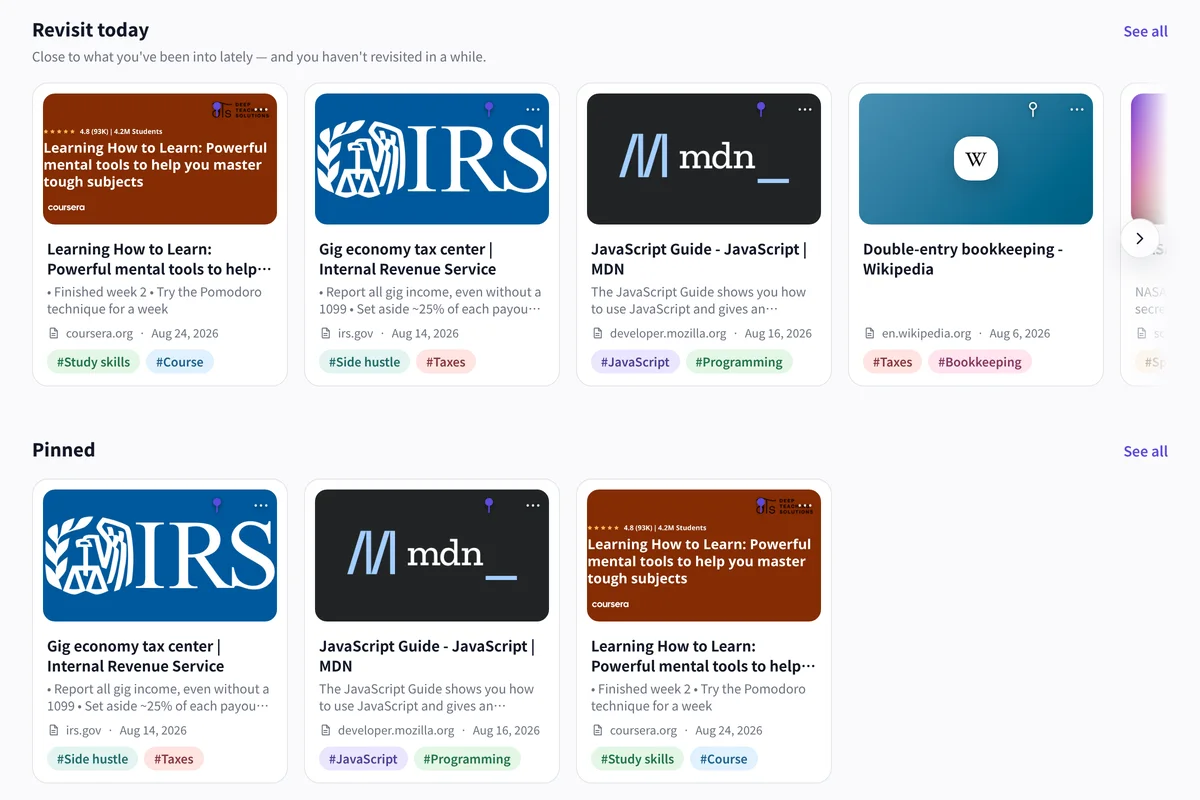
Don’t bookmark and forget
Links you haven’t opened in a while resurface on Home, so posts you saved and forgot get another look.
- Same data on the iOS app and the web
- Free plan with no time limit
- Title and thumbnail fetched automatically
FAQ
Can I move my X bookmarks to LaterList?
Choose a JSON file that contains post URLs, or a text file with one post URL per line, on the import screen. Links you’ve already saved are skipped automatically.
How do I export my X bookmarks as JSON?
LaterList can’t read bookmarks directly from X. Use a tool that exports bookmarks as JSON, or copy the posts’ links into a text file.
Will importing remove my bookmarks on X?
No. LaterList only reads the file you choose and never connects to your X account.
How do I save new posts I find on X?
In the iOS app, pick LaterList from X’s share menu to save in one tap. On the web, paste the post’s URL to save it.
How many links can I import for free?
The Free plan holds up to 50 links in total. If your file has more, the import screen shows how many will fit and how many are over the limit before you import. To bring everything over, choose Lite (1,000 links) or Pro (practically unlimited).
Keep the posts you bookmark in a form you can find.
Sign up and the import screen opens right away. Free for up to 50 links.